(01)PARKLY / Mobile UX/UI
Vehicle Onboarding
& Management
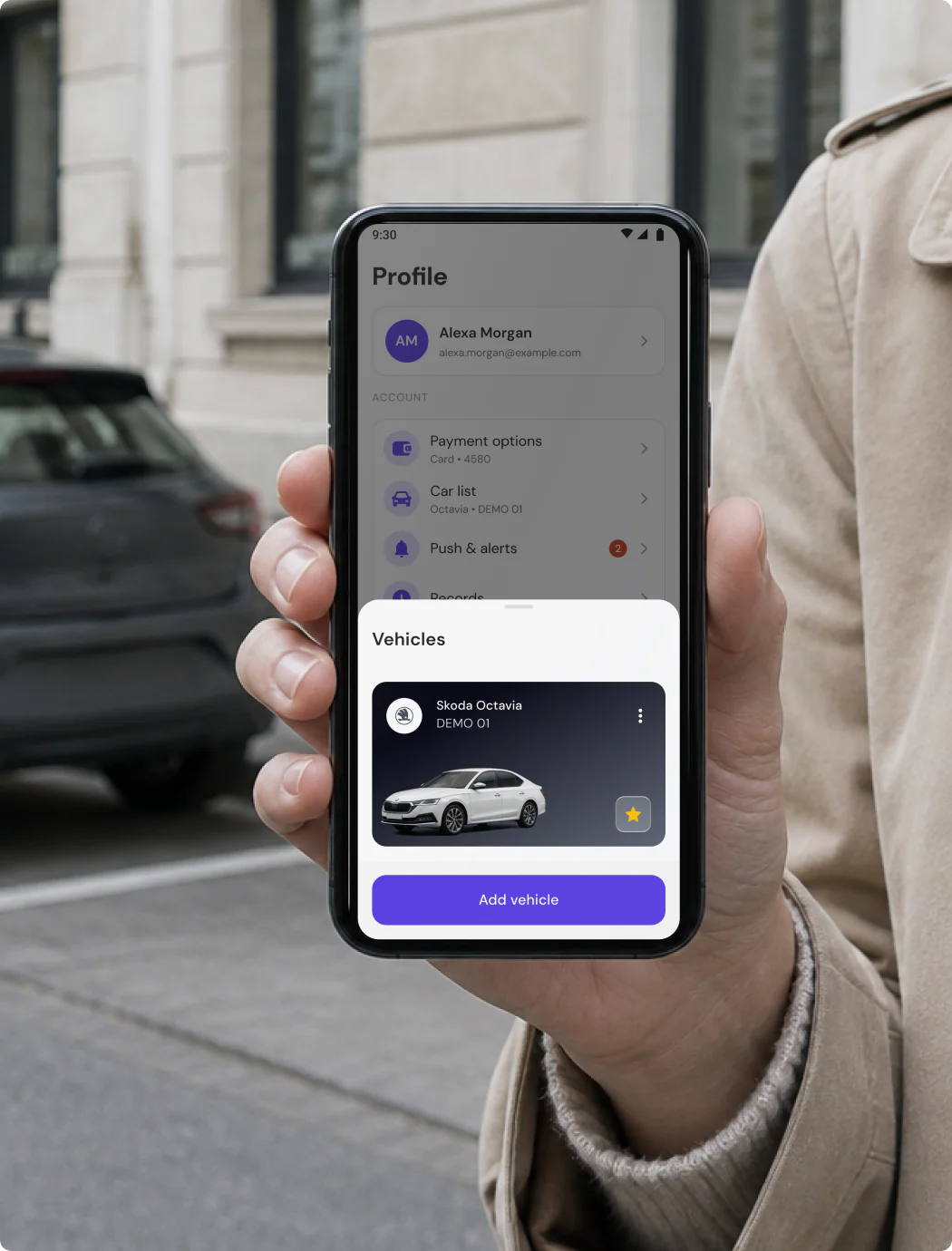
Designing a flexible vehicle setup and management experience for a mobile parking app.
(02)Overview
Project at a glance
The Project
A mobile application designed to help drivers find and pay for parking.
The Challenge
Design a vehicle setup flow that supports scanning and manual entry, makes saved cars easy to identify, and provides clear management controls.
My Role
I independently designed the vehicle onboarding and management flow, created interaction states, and extended the existing design system with reusable components and icons.
Collaboration
I worked with developers and QA during refinement to review the feature before implementation.
Confidential Project · Visual Reconstruction
(03)User flow
From vehicle setup to management
- 01
Add vehicle
Onboarding or profile · scan or manual entry
- 02
Select brand
Search · icon grid · selected state
- 03
Save vehicle
Visual vehicle card · preferred vehicle
- 04
Manage vehicles
Empty state · confirmed removal
(04)Key design decisions
Key design decisions
01
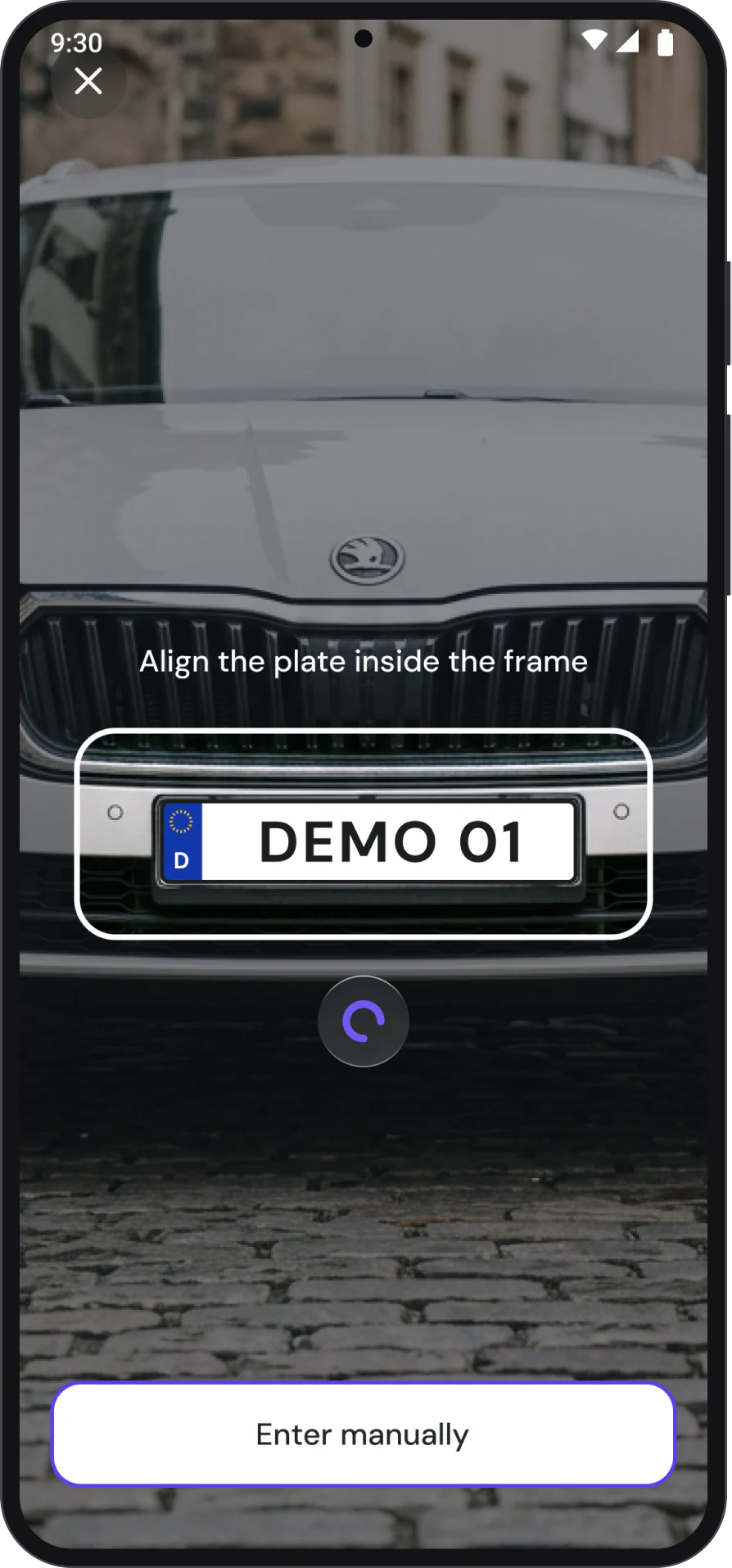
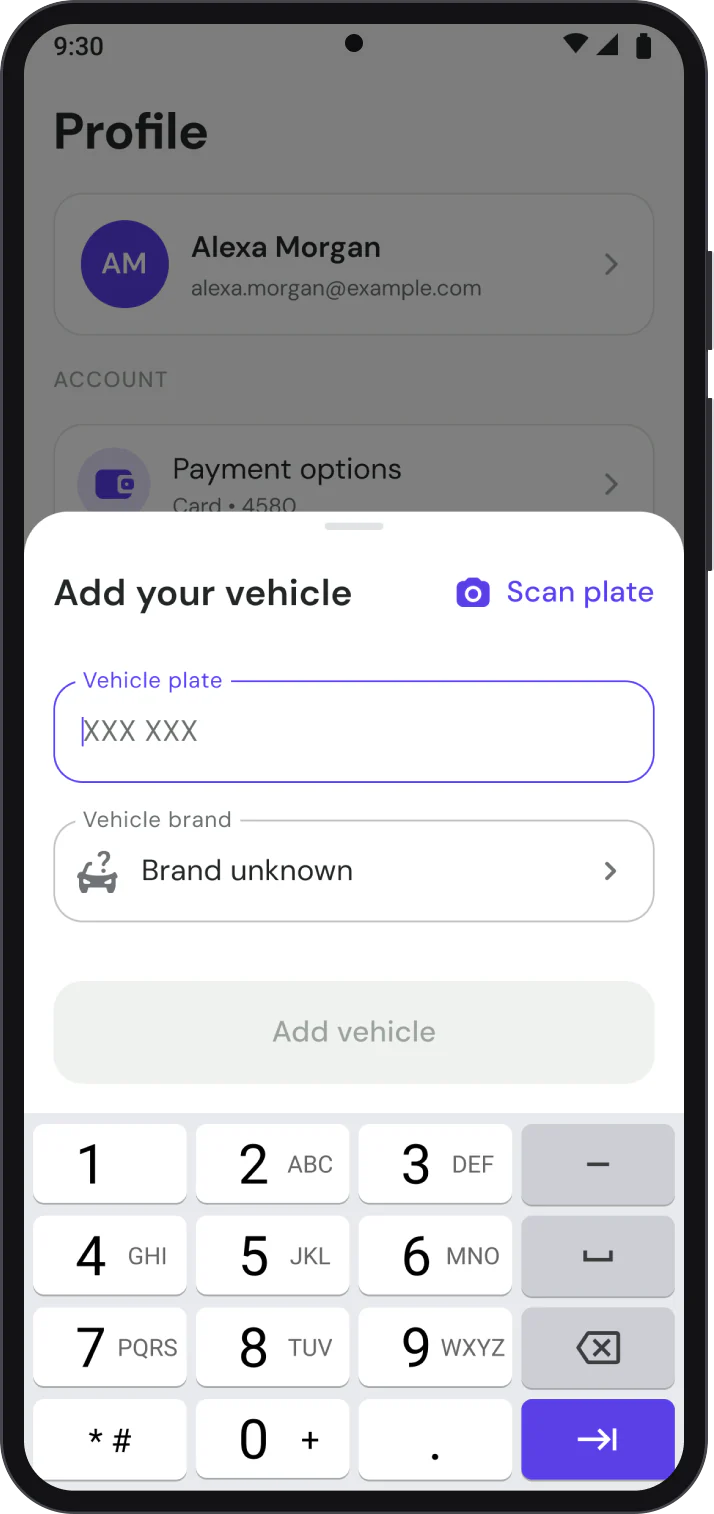
Two ways to add a vehicle
I designed both manual plate entry and camera-based scanning to give drivers flexibility during vehicle setup.
The flow also includes alternative states, allowing users to continue manually when scanning is unavailable.
Why this decision

02
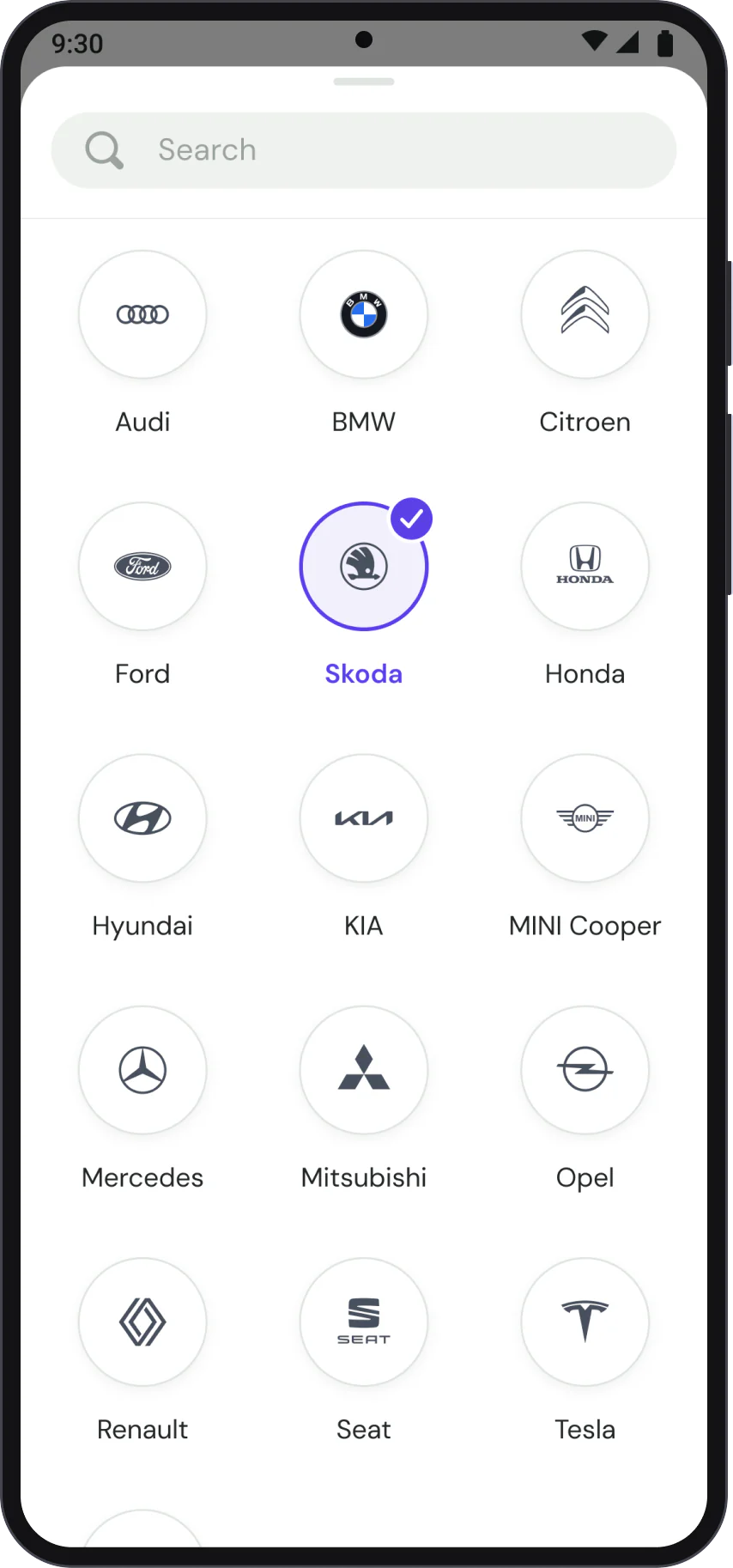
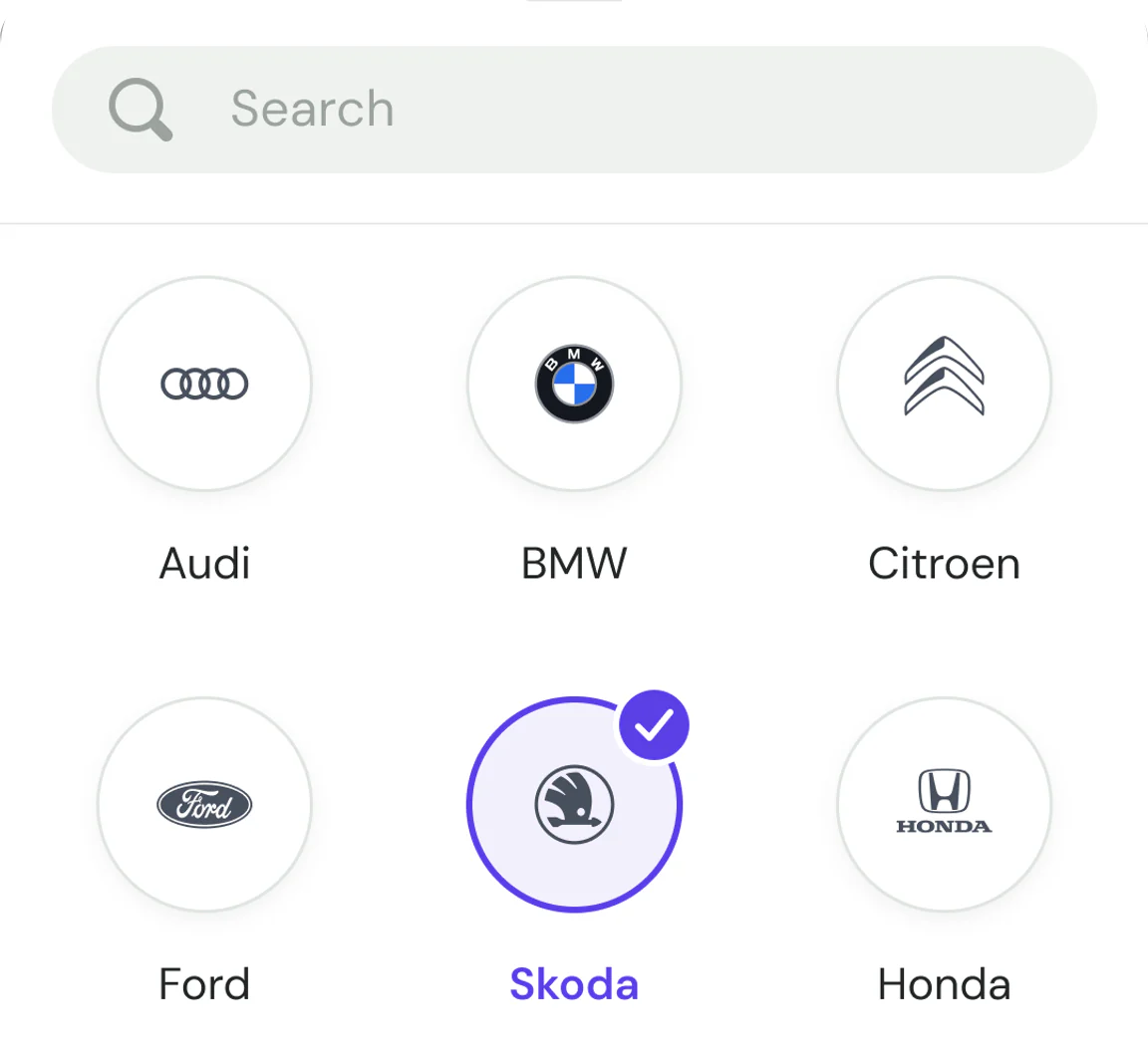
Recognize brands at a glance
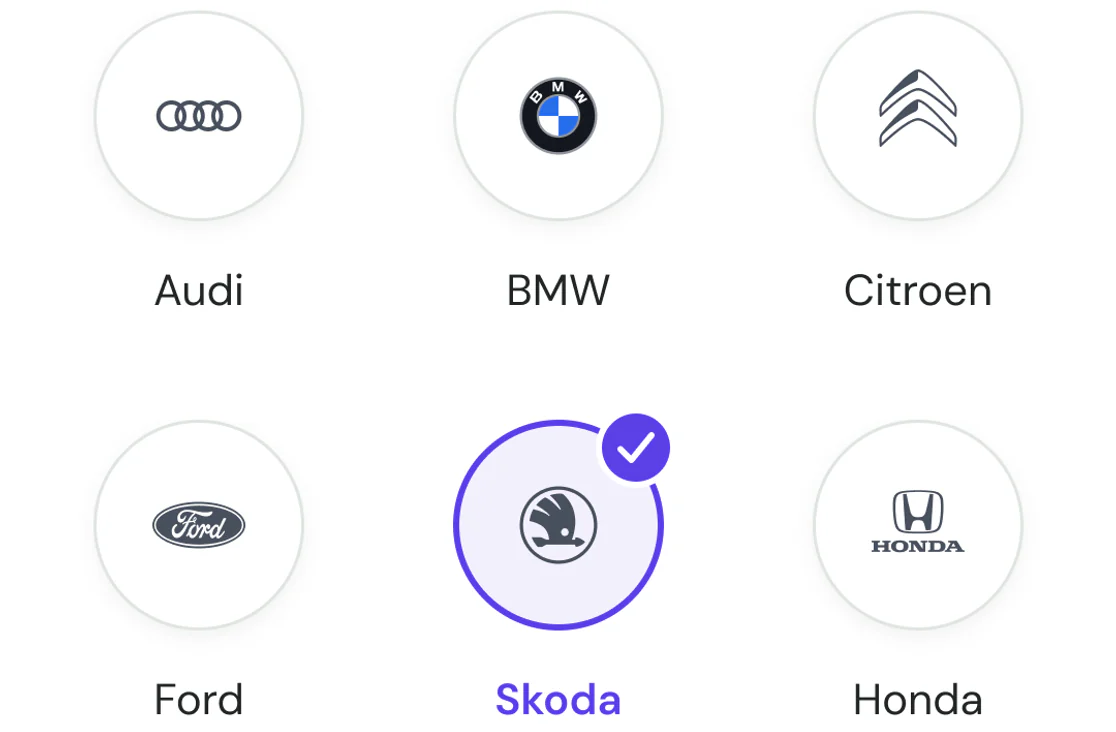
I introduced recognizable car-brand icons alongside brand names to support visual identification during selection.
For this portfolio reconstruction, I adapted the original list into a visual grid while preserving the same UX principle.
Why this decision

03
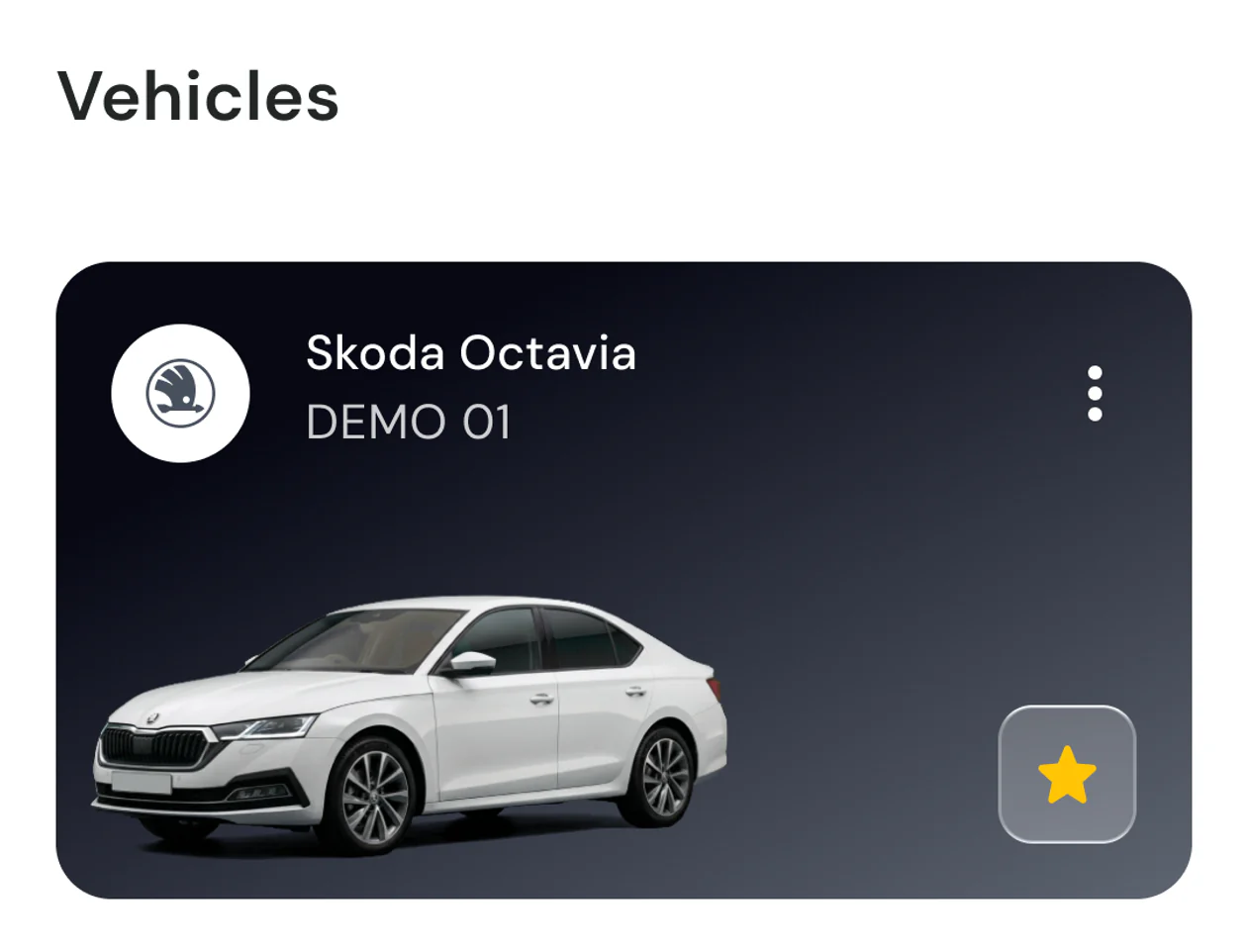
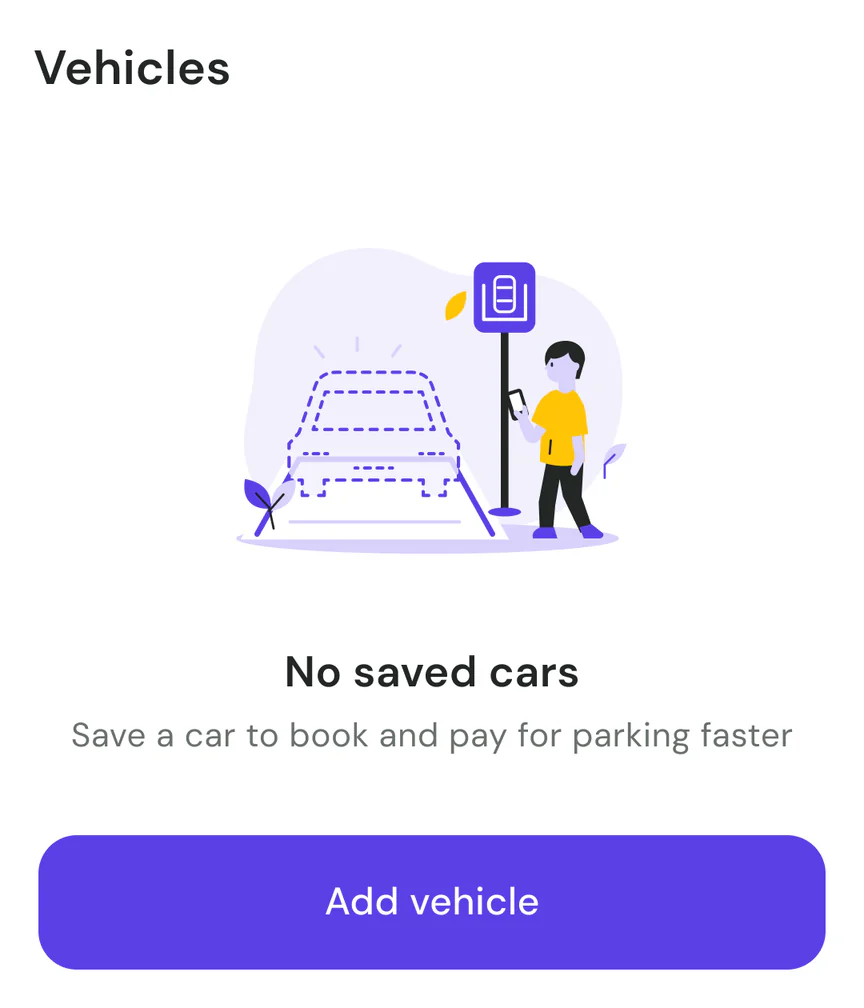
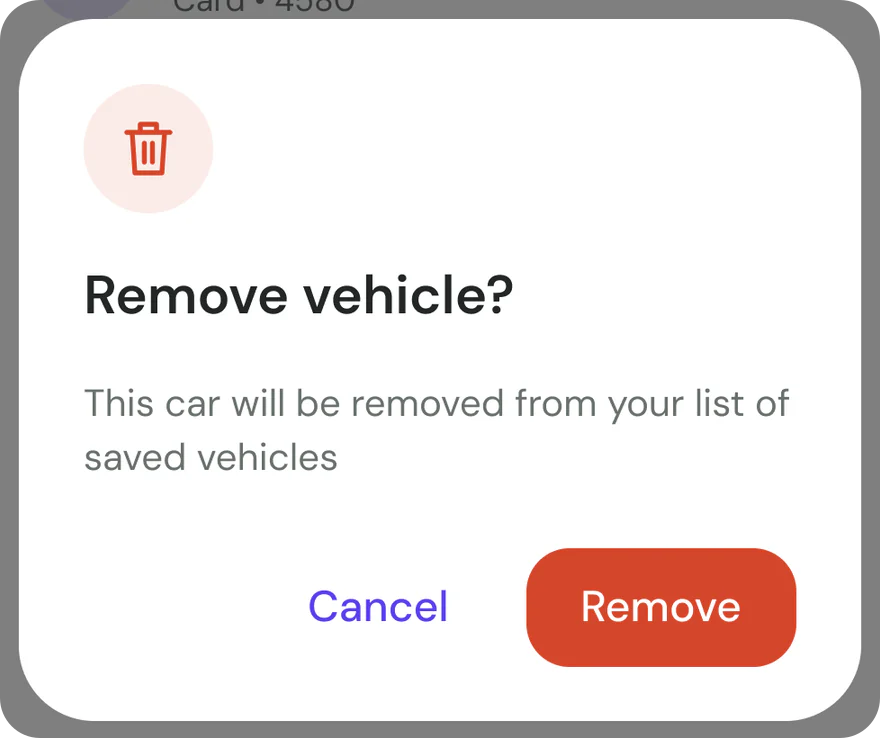
Making saved vehicles easy to recognize
I designed visual vehicle cards to make saved cars identifiable at a glance and provide access to key management actions.
The experience also accounts for empty states and confirms destructive actions before removing a vehicle. Users can also mark a vehicle as preferred, so it appears first in their saved-vehicle list when they return to the app.
Why this decision
(05)Design system
Extending the design system
Brand icon tiles · Default / selected
Vehicle card · Saved vehicle
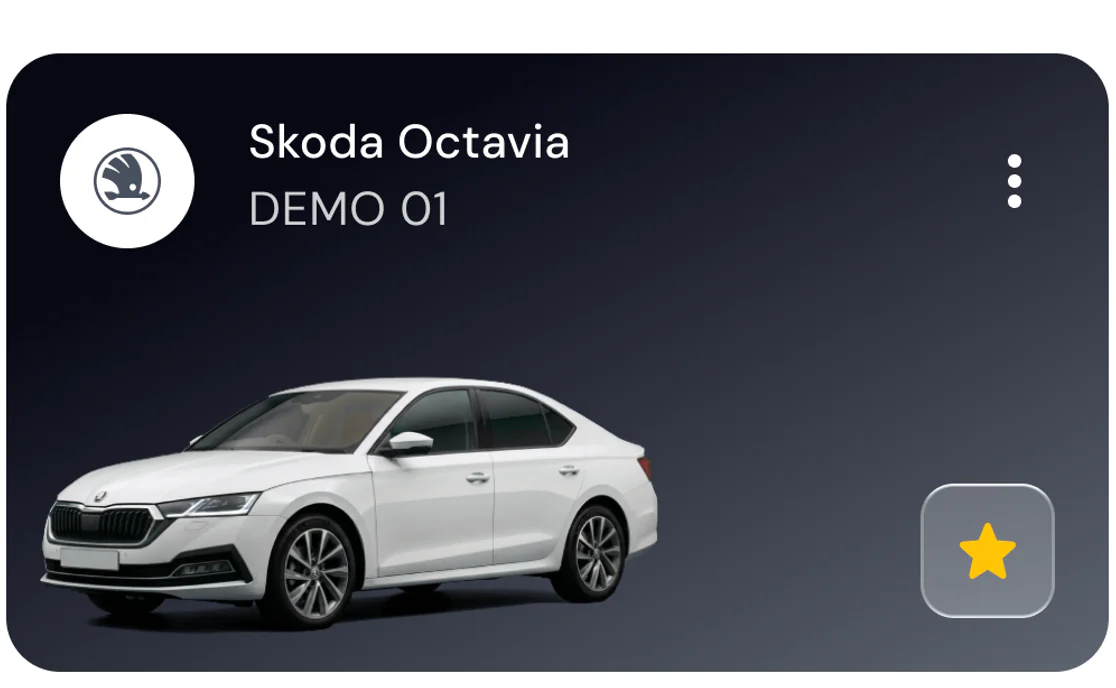
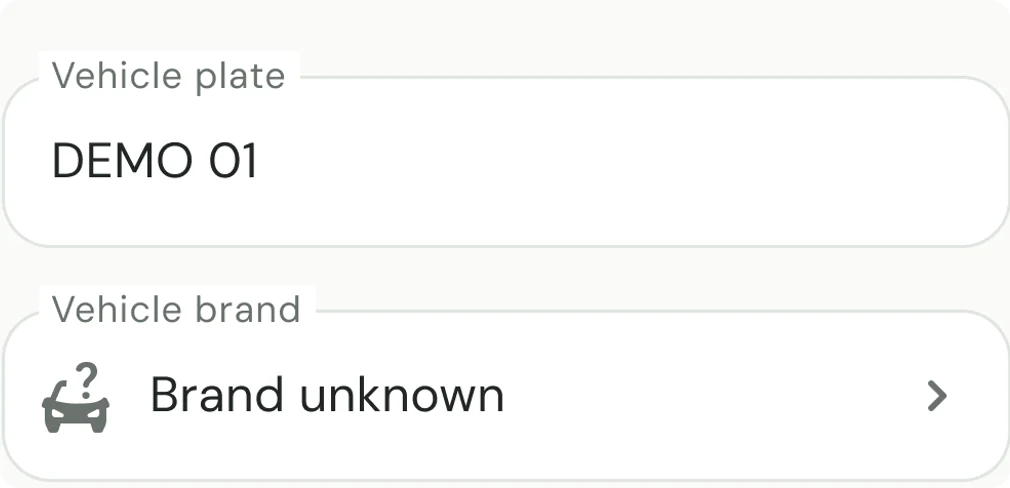
Plate field + brand selector · Add vehicle form
Scan entry point · Add vehicle form

Actions · Primary / confirm


Components presented using the portfolio reconstruction screens, not original production files. Vehicle brand marks are used for illustration only and belong to their respective owners.
(06)Outcome
What I Delivered
Delivered — UX/UI design
Delivered the UX/UI design for vehicle onboarding and management, including plate scanning and manual entry, brand selection, saved-vehicle cards, empty states, and removal confirmation.
Created and adapted reusable components and vehicle-related icons within the existing design system.
Key takeaway
Designing the complete flow meant accounting for more than the primary action — from alternative input methods to selection feedback and vehicle management states.
(07)More work